Searching for an Inactive Drug
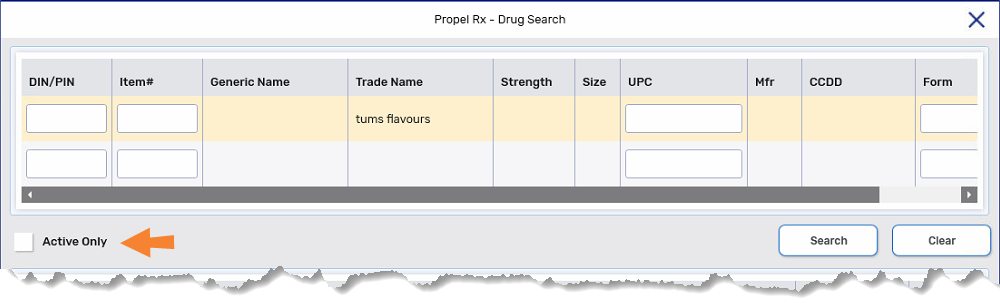
The Drug Search window contains an Active Only checkbox. By default, the Active Only checkbox is selected (ON). This means, drug searches by default only include Active drugs. Deselect this checkbox to include both Active and Inactive drugs in the search.
A drug is considered Inactive if the Inactive checkbox in the Drug Folder is selected (ON). For more information, see Inactivating a Drug.
To search for an Inactive drug:
-
Select the Drug navigator button
 . The Drug Search window opens.
 -
Deselect the Active Only checkbox in the Drug Search window.
-
Enter the DIN, trade name, generic name, item number, and/or UPC in the corresponding fields.
You can scan the UPC of the drug bottle or pack in the UPC field.
-
Select Search. Matching results display at the bottom of the window.
-
Select the drug.
-
Select OK. The Drug Folder opens on the Inventory tab.